Uniconta: Export Customer Invoices
Features
- Activate all or specific customers for sending invoices and credit notes.
- Export customer invoices to VANS (EDI).
- Export customer invoices to PEPPOL/NemHandel.
- Export invoices to specific customers or gateways such as SFTP, FTPs, HTTPs, AS2, API and Email.
- Configure positive and negative email notifications for app users.
- Schedule invoice exports hourly, daily, or weekly.
- Share the adaptor with other users in your subscription with security and access-control features.
Configuration flow
Procedure to activate Adaptor Uniconta: Export Customer Invoices
Navigate to Adaptors -> Catalogue, there you can find multiple Adaptors which you can use for business purpose
Click on 'Activate', Adaptor Uniconta: Export Customer Invoices will be activated in your account
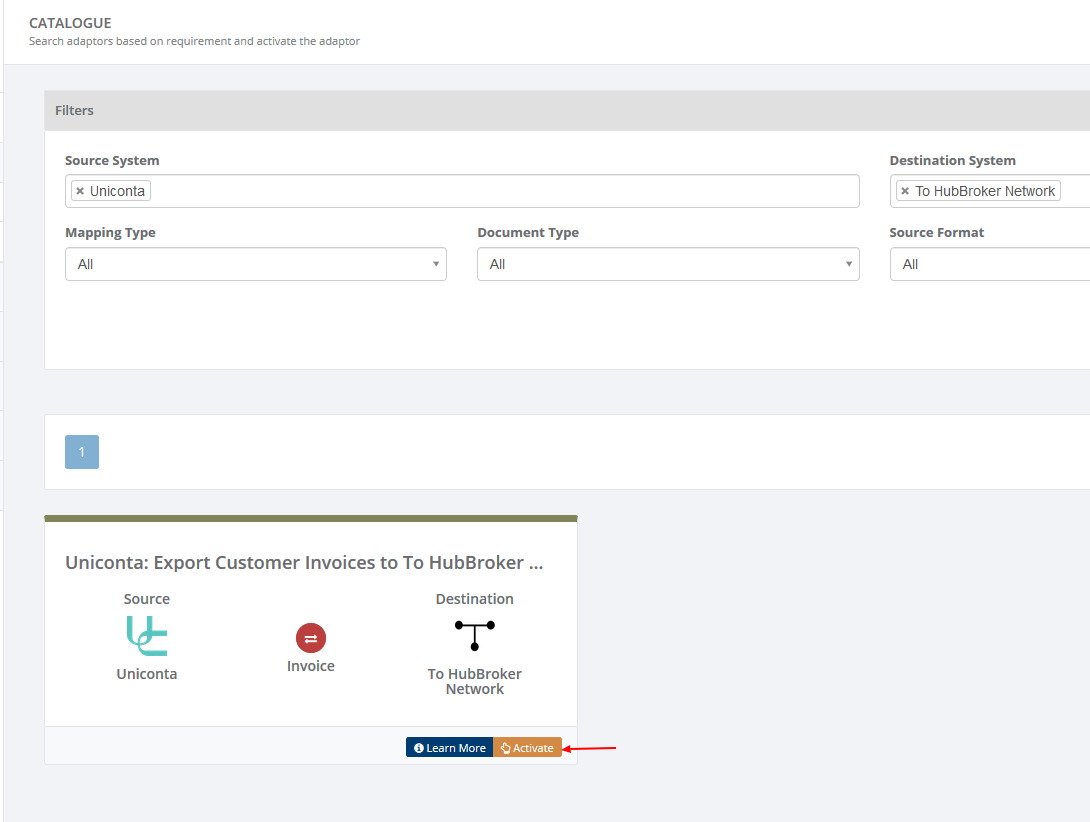
After activation of Adaptor it will navigate to 'General' screen of Adaptor
Procedure to configure Adaptor uniconta: Export Customer Invoices
In General you can manage different settings described in below (General) image
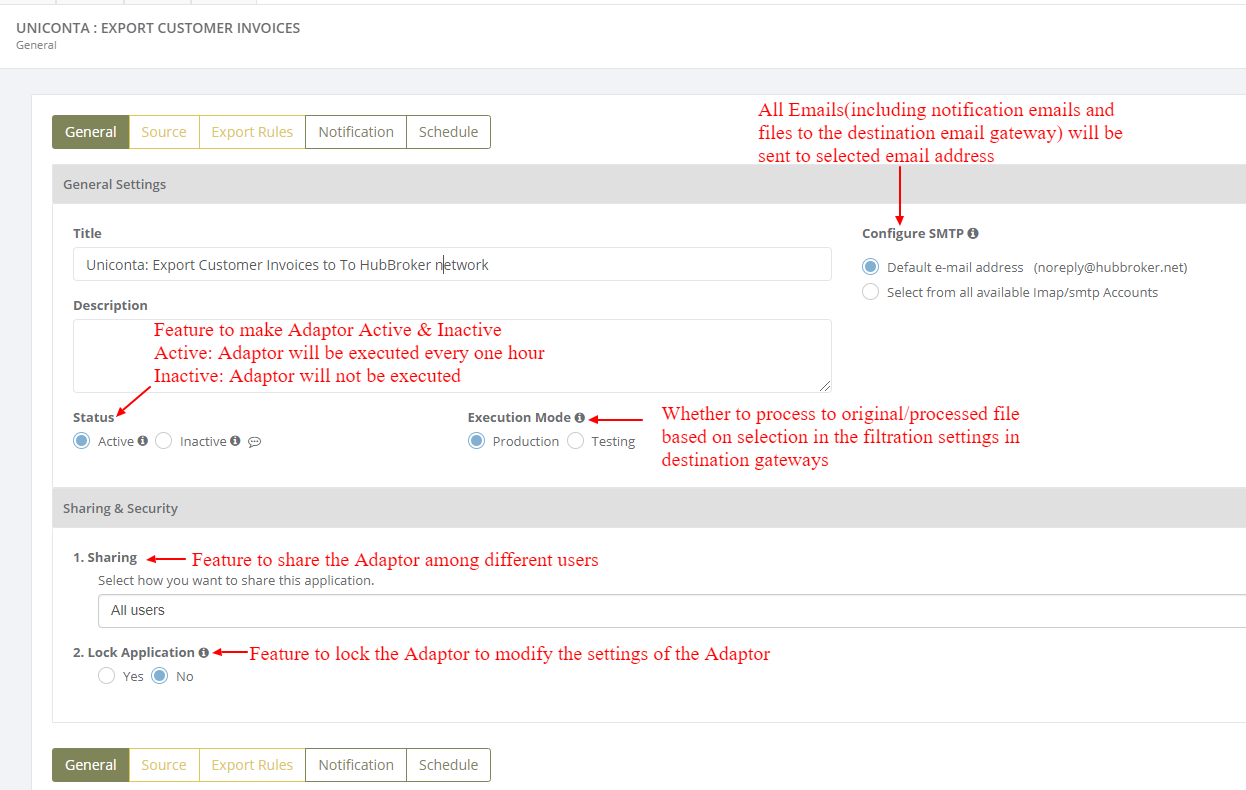
The General tab allows you to configure the basic adaptor settings, including the SMTP account used for sending notification emails and files. You can activate or deactivate the adaptor, select the appropriate Production or Testing execution mode, share the adaptor with other users in the subscription, and lock the application to prevent unauthorized changes to its configuration.
Click on 'Source' to connect uniconta account with iPaaS, and invoices will be exported from your uniconta account once it is configured
How to connect uniconta account with iPaaS?
Step by step instructions to quickly set up your uniconta account with IPaaS-HubBroker.
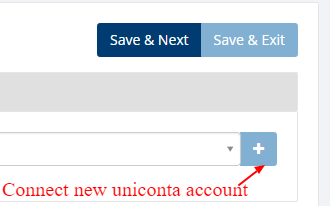
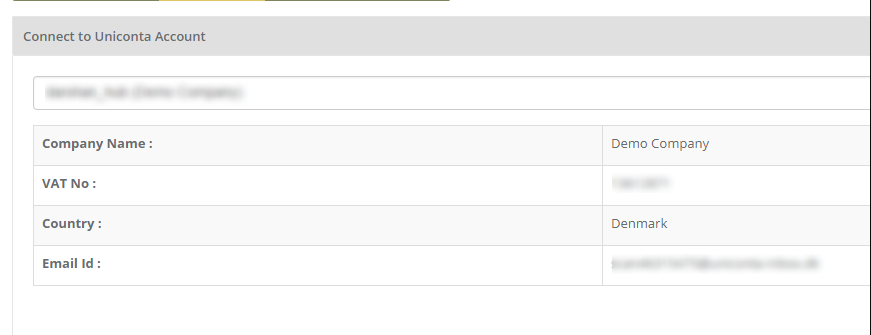
After click on '+' you can provide your uniconta account's credential.
Click on 'Save' and your uniconta account will be connected to iPaaS.
Click on 'Export Rules' to add settings for customers and supplier
In 'Export Rules', all the customers connected through uniconta account will be displayed and you can activate all/specific customers for invoices
After activation of customers you can change custom settings (General settings, supplier/sender settings, customer/receiver settings, output format, destination gateway) for individual customer
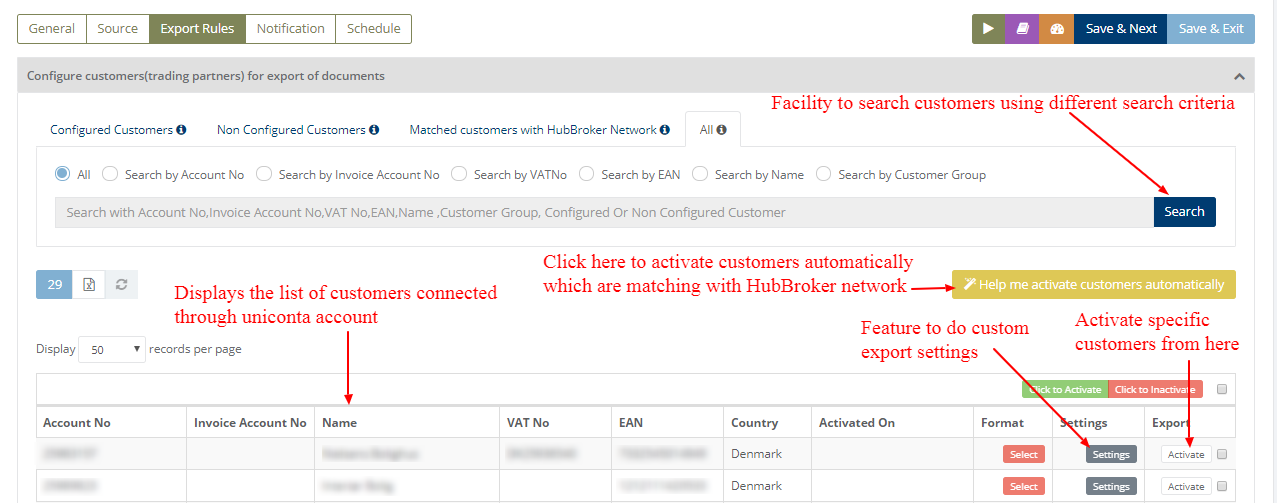
The Export Rules tab allows you to configure customers for invoice export from Uniconta.
You can search customers using different criteria such as All, Account No., Invoice Account No., VAT No., EAN, Name, or Customer Group.
The customer list displays customers connected through the Uniconta account, with options to automatically activate customers matching the HubBroker network, configure custom export settings, and activate specific customers for export.
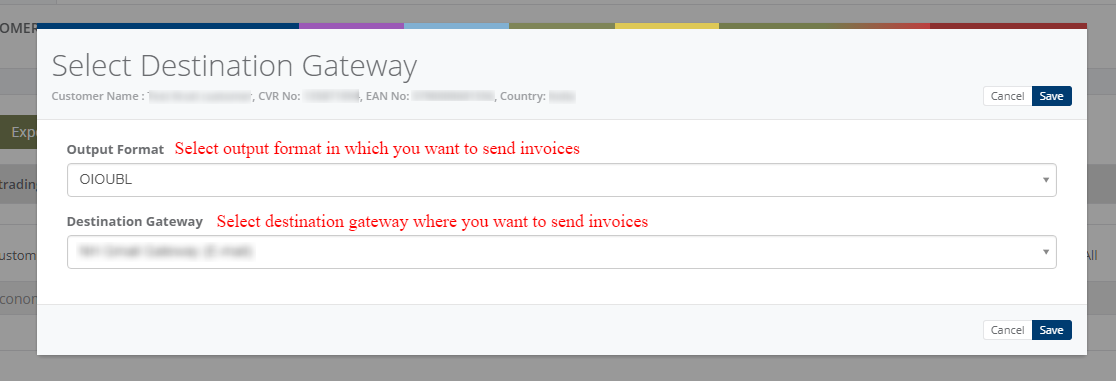
While activation of customer it will ask for the details, where you need to provide output format and destination gateway to identify in which format and where we can send the invoices
After activation of customer it will be displayed like below (Activated customer) image:
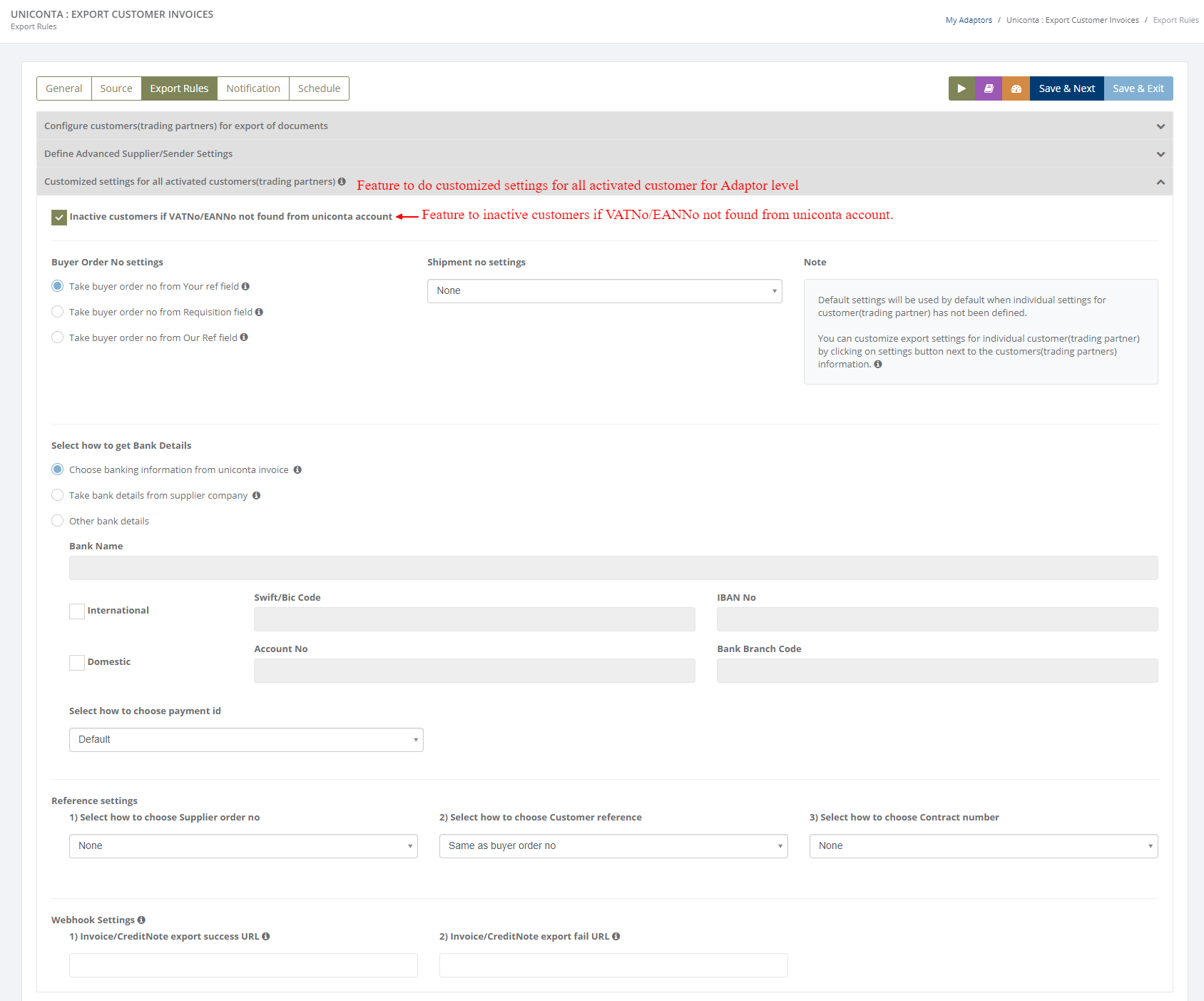
You can do customized (Common) settings for Supplier/Sender in Adaptor level like displayed in below (Customized settings for supplier - Adaptor level) image and it will be applicable to all the customers
You can do customized (Common) settings for all the selected customers in Adaptor level like displayed in below (Customized settings for customer - Adaptor level) image and it will be applicable to all the customers
If you want to change settings for some individual customer then you can click on 'Settings' and it will do custom settings for that particular customer (Displayed in above - Activated customer image)
Custom settings for particular customer
You can change below settings for individual customer
- General settings
- Supplier/Sender settings
- Customer/Receiver settings
- Output Format
- Destination Gateway
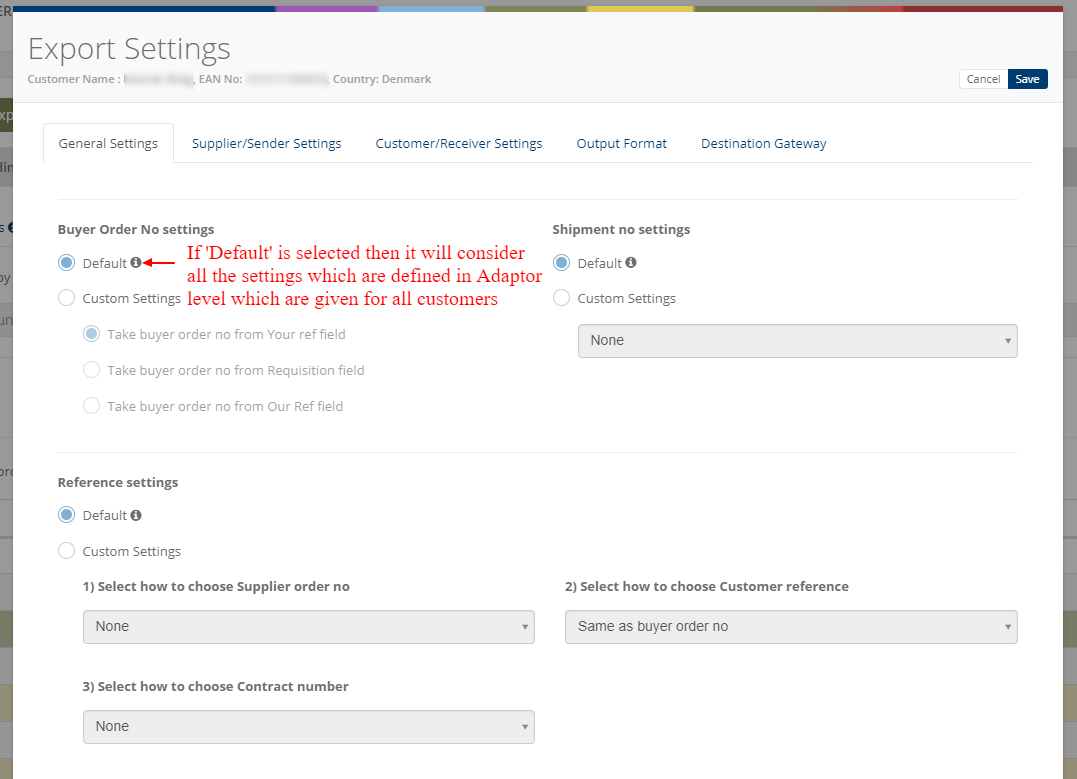
Custom settings allow you to configure export rules specifically for an individual customer instead of using the default adaptor-level settings.
The General Settings control buyer order number, shipment number, and reference information.
Supplier/Sender Settings define the sender details, while Customer/Receiver Settings manage VAT numbers, receiver routing IDs, qualifiers, and Sell-To information.
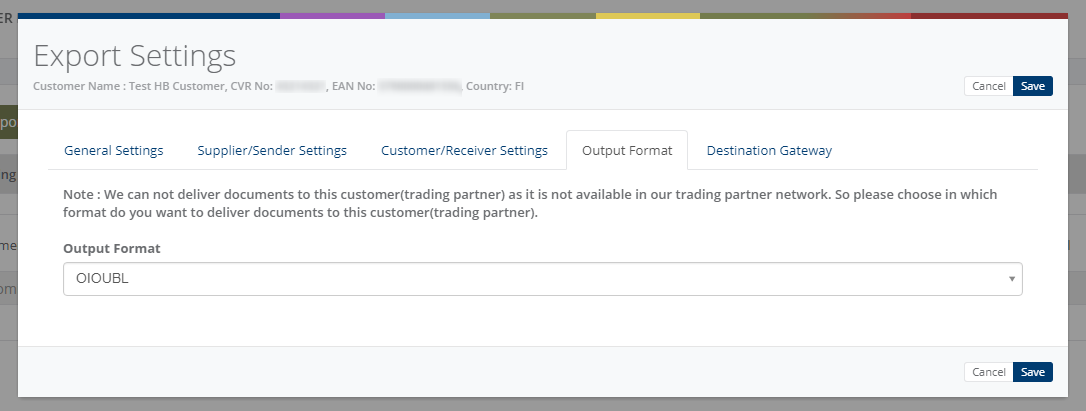
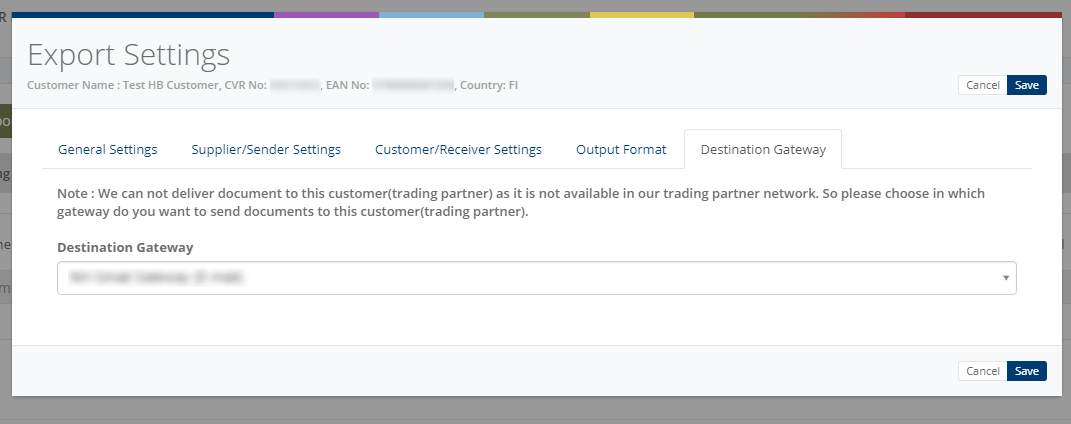
The Output Format allows you to select the required document format, and the Destination Gateway defines where the exported document should be delivered.
Notification settings
HubBroker Notification Module includes the ability to be notified on the individual steps of the transformation process, from data and / or file received at HubBroker until data and/or file leaves HubBroker’s operating environment.
- In the notification module, standard notification text can be used, or specific notification text is specified.
- In addition, small shortcuts have been developed that can be enabled in the notification message, which makes it easier for the user to navigate the HubBroker integration platform (iPaaS).
- HubBroker provide facility to send positive and negative notifications for document and adaptor level.
- User can enable/disable the notification settings according to your needs
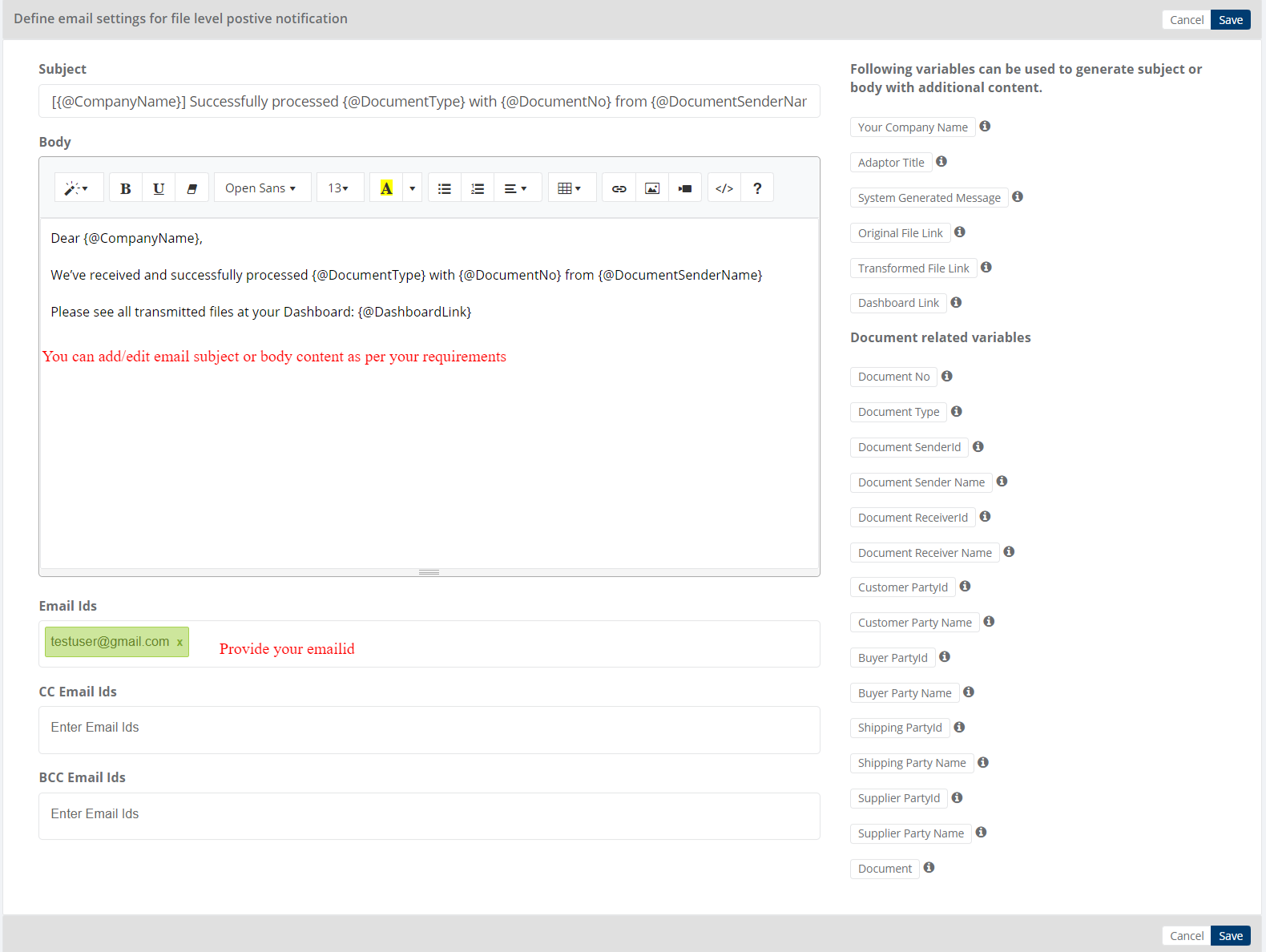
- Document level positive notification ensures that file is processed successfully.
- Document level negative notification ensures that file is failed due to some reasons.
- Adaptor level positive notification ensures that all files processed successfully.
- Adaptor level negative notification ensures that some of the file is not processed due to some business rule.
User can set their email ids for getting positive and negative email notification.
Schedule settings
You can set schedule for Adaptor when you want to be run the Adaptor automatically.
Learn more about schedule settings - Click here
Dashboard
You can view all the transactions of Adaptor through Dashboard
You can view all the details of exported documents like sender, receiver, document number, customer order number, supplier order number and status
You can view XML file of invoices which are exported and successfully processed into destination gateway
You can manually export multiple invoices
Click on 'Manually Export Invoices' and you can manually export multiple invoices to the customer with the facility By Invoices , By Customer and By Date.
1. Search by invoices
2.Search by customer
3. Search by date
Click on 'Find Invoices' and you get the list of Not Activated, Not Exported and Already Exported invoices.
Category: Adaptor
Last date of update: 15.10.2026
