Email Gateway
Email Gateway can be used as destination in Adaptors to send one or multiple documents to email accounts
When 'Create new email account' is clicked then it will redirect to email account page in order to create new email account
The Email Account configuration allows users to provide an account title and add multiple email IDs for email communication. The Sharing option allows the account to be shared with other users, while Lock Account prevents users from modifying the account settings when enabled. Saving the account automatically associates it with the Email Gateway.
The Account Settings section allows you to configure email notifications for files processed through the gateway. You can customize the notification recipients, subject, body, and language.
- CC Email IDs: Enter additional email addresses to receive a copy of the notification.
- BCC Email IDs: Enter email addresses to receive a hidden copy of the notification.
- Language Selection: Select UK (English) or DK (Danish) to change the notification email's subject and body based on the selected language.
- Subject: Customize the email subject that will be used when files are processed through the gateway.
- Body: Configure the notification email message using the text editor. You can include dynamic placeholders such as
{@Adaptor_Title},{@Gateway_Title}, and{@FileLinks}to display relevant processing details. - Reset to Default Settings: Click this button to restore the default notification settings.
As shown in the image: The notification email is configured to inform recipients when files are received through the gateway. The subject includes the file count and adaptor title, while the body displays the adaptor name, gateway name, and file links. The subject and body can also be changed based on the selected language.
- As Attachments: Enable this option to include the processed documents as file attachments in the notification email.
- As Links: Enable this option to include links to the processed documents in the email, allowing recipients to access the files through the provided links.
- As Body Text: Enable this option to include the document content directly in the email body.
As shown in the image: Both As Attachments and As Links are enabled, meaning the notification email will include the processed documents as attachments and provide links to access them. The As Body Text option is disabled, so the document content will not be included directly in the email body.
The Variables section allows you to personalize notification emails by adding dynamic information to the email subject and body. These variables are automatically replaced with their corresponding values when the notification email is generated.
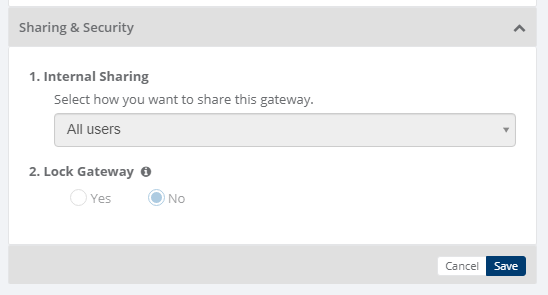
Sharing & Security
Sharing and security is used to share Gateways with other users in your subscription with lots of security features.
Below options are available for sharing and security for gateways
- Internal Sharing
- Lock Gateway
1. Internal sharing
User can share the gateway to other users using below options
- Only Me: Gateway will not be shared to any user, only that user can use the gateway
- All Users: Gateway will be shared to all the users and all the users can use the gateway
- Specific user group: You need to select some user groups so gateway will be shared to selected user groups and the users of that user groups only can use the gateway
- Only admin users: Gateway will be shared to admin users of that company
2. Lock gateway
User can lock the gateway,
- If gateway is locked, and gateway is shared to other users then other users will not be able to edit the gateway settings, they can only use the gateway
- If gateway is not locked, then other user can edit the gateway details
Category: Gateway
Last date of update: 13.10.2026
