SFTP Gateway
SFTP gateway can be used as source or destination in Adaptors to upload/download one or multiple documents to SFTP accounts.
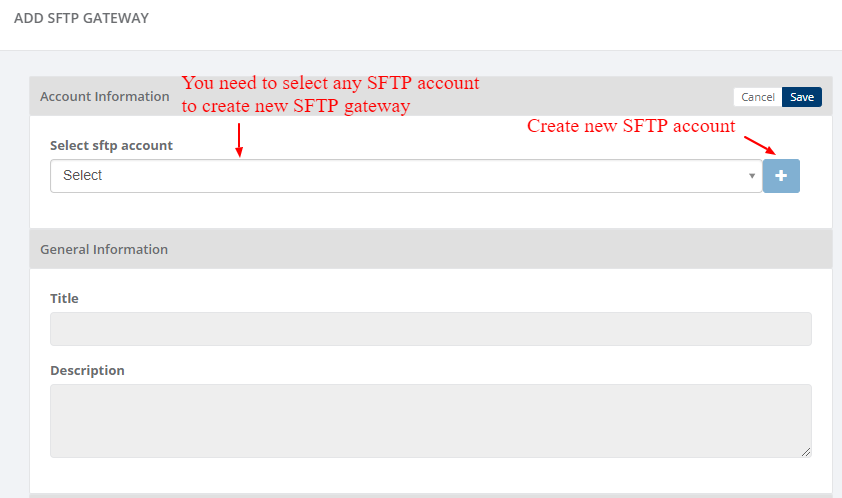
Select SFTP Account: Select an existing SFTP account to configure and create the SFTP gateway.
Create New SFTP Account: Use the “+” button to create a new SFTP account when an existing account is not available.
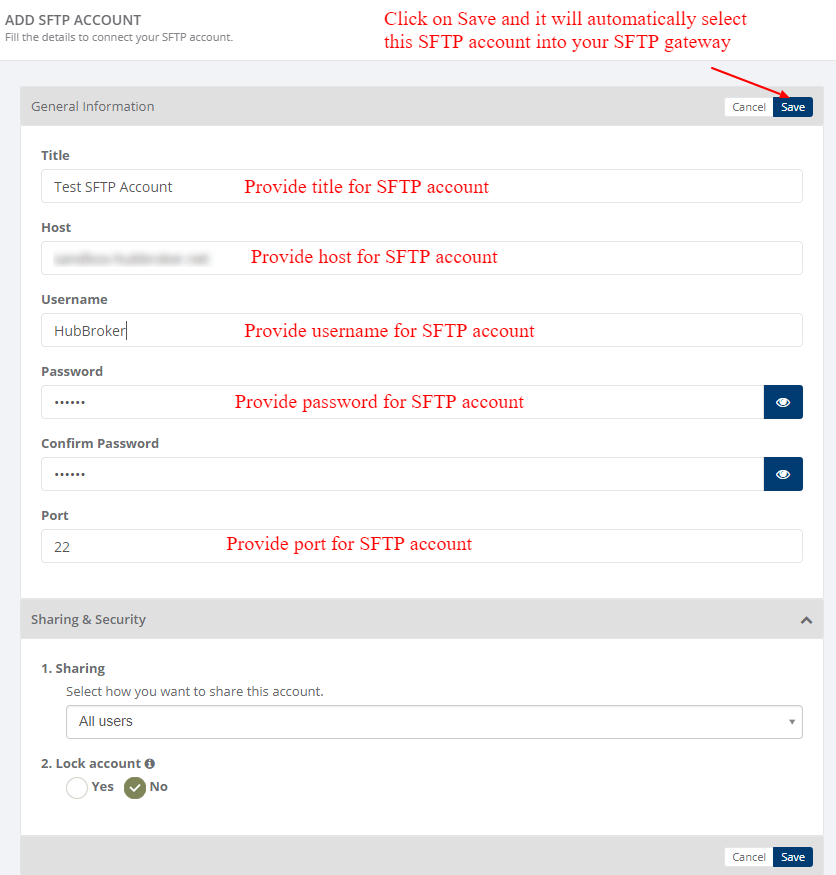
The SFTP account settings allow users to provide the required connection details, including the account title, host, username, password, confirmation password, and port. After saving, the SFTP account is automatically selected and linked to the SFTP gateway.
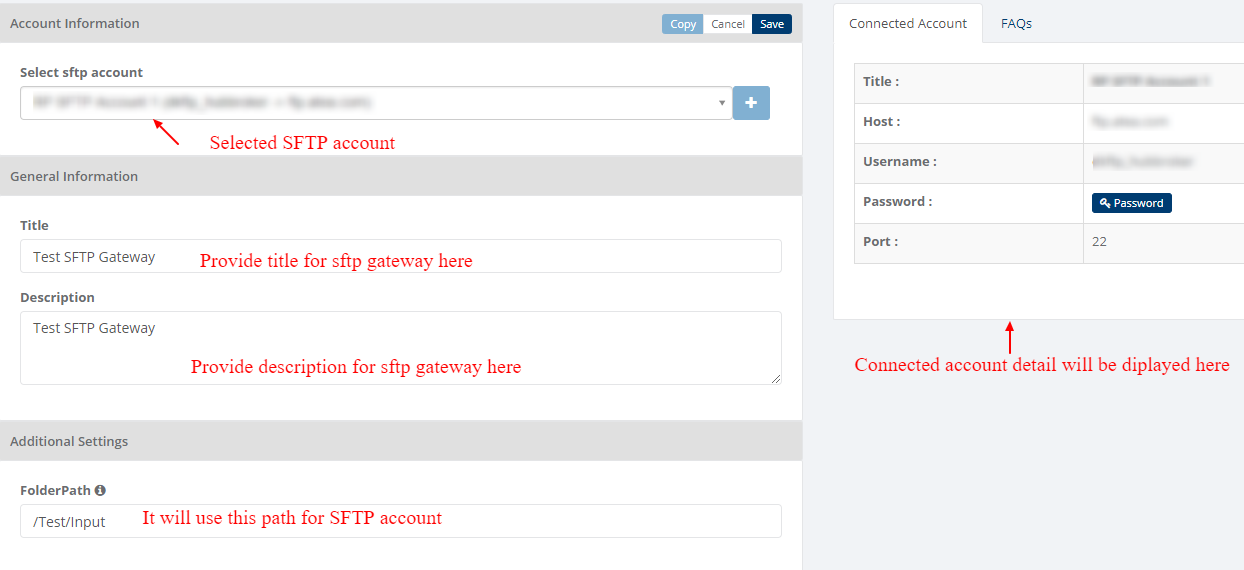
The SFTP Gateway settings allow users to select a configured SFTP account, provide a gateway title and description, and define the folder path to be used for SFTP file processing. The connected account section displays the selected SFTP account details, while the folder path specifies the location where files will be accessed or stored through the gateway.
Sharing & Security
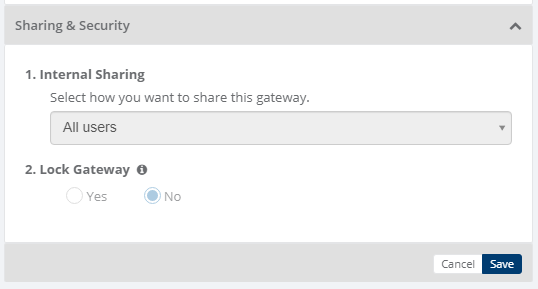
Sharing and security is used to share Gateways with other users in your subscription with lots of security features.
Below options are available for sharing and security for gateways
- Internal Sharing
- Lock Gateway
1. Internal sharing
User can share the gateway to other users using below options
- Only Me: Gateway will not be shared to any user, only that user can use the gateway
- All Users: Gateway will be shared to all the users and all the users can use the gateway
- Specific user group: You need to select some user groups so gateway will be shared to selected user groups and the users of that user groups only can use the gateway
- Only admin users: Gateway will be shared to admin users of that company
2. Lock gateway
User can lock the gateway,
- If gateway is locked, and gateway is shared to other users then other users will not be able to edit the gateway settings, they can only use the gateway
- If gateway is not locked, then other user can edit the gateway details
Category: Gateway
Last date of update: 08.10.2026
