FTP Gateway
FTP gateway can be used as source or destination in Adaptors to upload/download one or multiple documents to FTP accounts.
Create New FTP Gateway
Select FTP Account: Select an existing FTP account to configure the FTP Gateway.
Create New FTP Account (+): Create and configure a new FTP account for the gateway.
When 'Create new FTP account' is clicked then it will redirect to FTP account view in order to create new FTP account
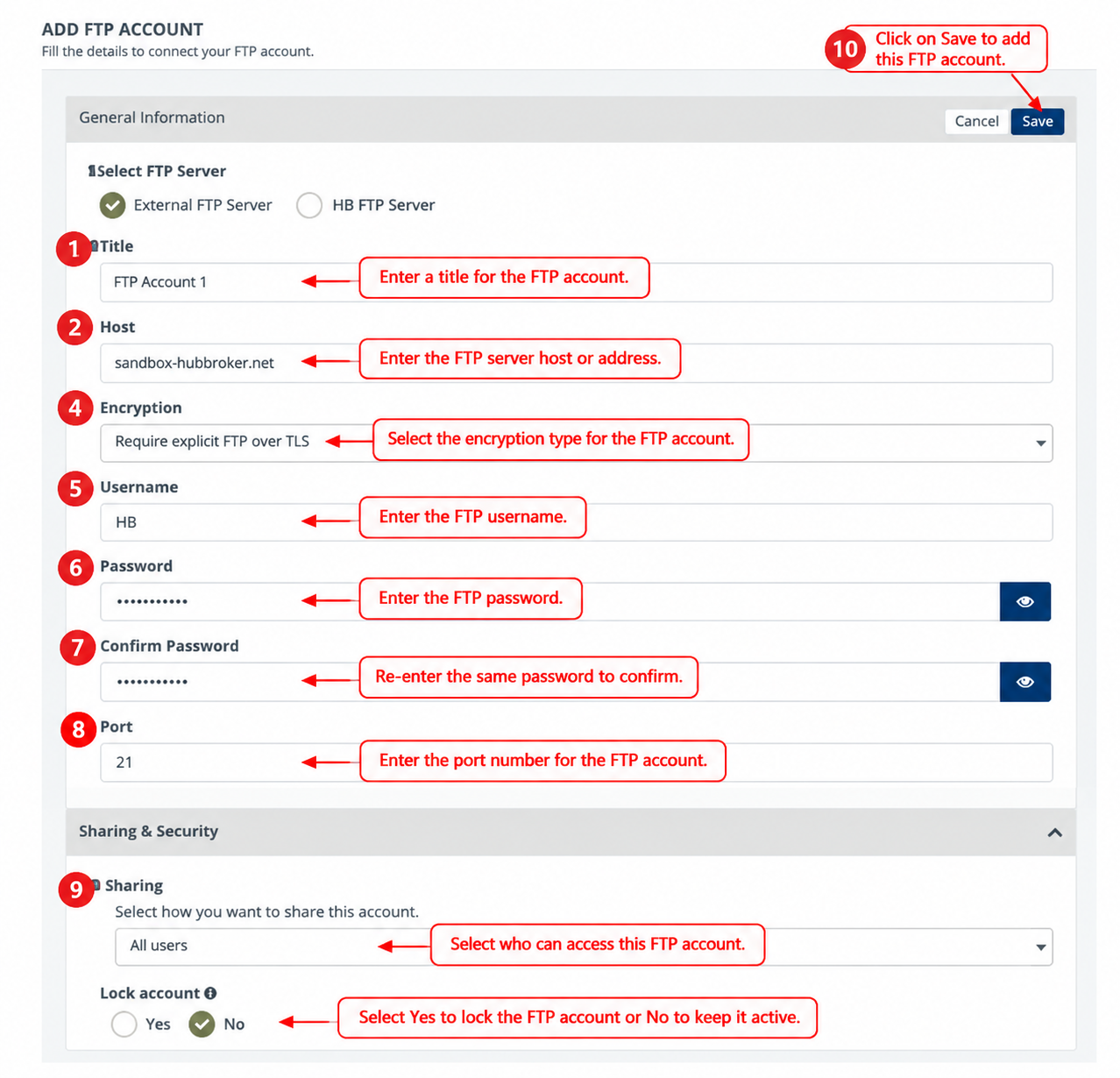
The Add FTP Account section allows you to configure an external FTP server or HubBroker FTP server for transferring files through your FTP Gateway.
- Select FTP Server: Choose External FTP Server or HB FTP Server.
- Title: Enter a name to identify the FTP account.
- Host: Enter the FTP server hostname or IP address.
- Encryption: Select the appropriate encryption method, such as Require explicit FTP over TLS, for a secure connection.
- Username: Enter the FTP account username.
- Password and Confirm Password: Enter and confirm the FTP account password.
- Port: Specify the port number provided by your FTP server administrator.
- Sharing: Select who can access and use the FTP account.
- Lock Account: Select Yes to lock the account or No to keep it available for use.
- Save: Click Save to create the FTP account and automatically select it in your FTP Gateway configuration.
As shown in the image: The External FTP Server option is selected, with Require explicit FTP over TLS configured as the encryption method, port 21, sharing set to All users, and Lock Account set to No.
The FTP Gateway configuration allows users to select a configured FTP account and define the gateway title and description. The connected account section displays the selected FTP account details, while the folder path specifies the location used for FTP file processing.
If the Create folder option is enabled, the system automatically creates the specified folder when it does not already exist.
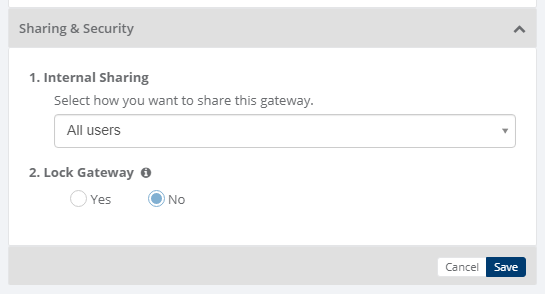
Sharing & Security
Sharing and security is used to share Gateways with other users in your subscription with lots of security features.
Below options are available for sharing and security for gateways
- Internal Sharing
- Lock Gateway
1. Internal sharing
User can share the gateway to other users using below options
- Only Me: Gateway will not be shared to any user, only that user can use the gateway
- All Users: Gateway will be shared to all the users and all the users can use the gateway
- Specific user group: You need to select some user groups so gateway will be shared to selected user groups and the users of that user groups only can use the gateway
- Only admin users: Gateway will be shared to admin users of that company
2. Lock gateway
User can lock the gateway,
- If gateway is locked, and gateway is shared to other users then other users will not be able to edit the gateway settings, they can only use the gateway
- If gateway is not locked, then other user can edit the gateway details
Category: Gateway
Last date of update: 13.10.2026
